

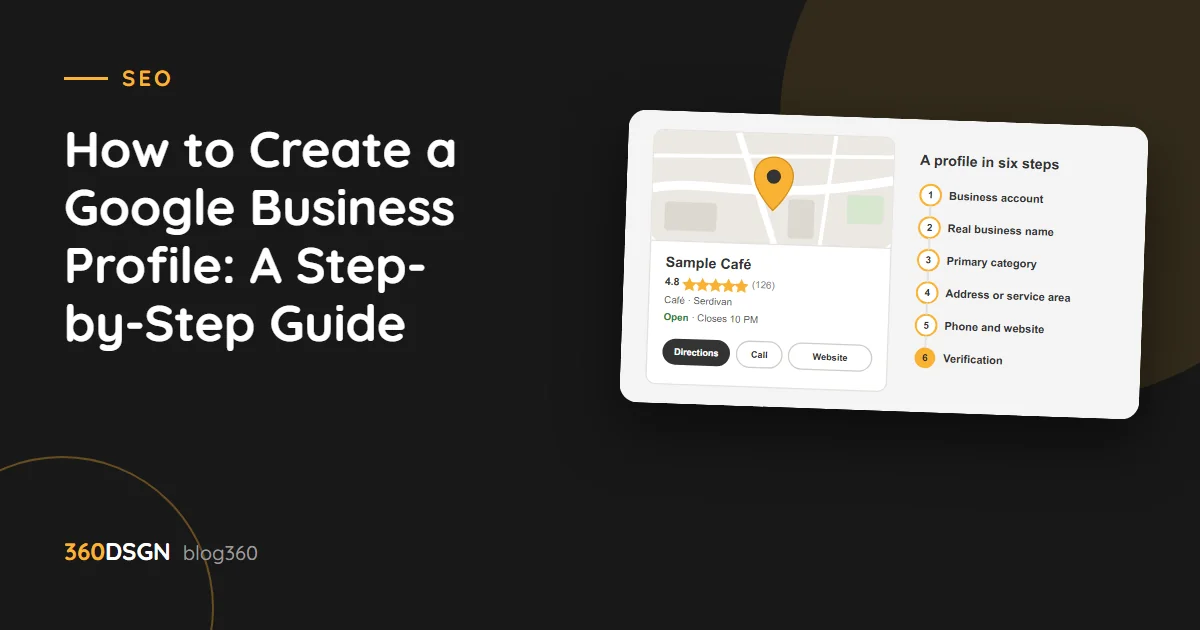
When someone searches Google for your business name, or for something like “dentist near me” or “boiler repair Serdivan,” a box shows up under the map and on the right-hand side with the address, phone number, opening hours and reviews. That box is a Google Business Profile, formerly known as Google My Business. It’s free, and for a business that wants local customers, it’s often what people see before they ever get to the website.
The short answer: You create the profile at business.google.com or from Google Maps. You enter your business name, category, address or service area, phone number and website, and then Google verifies your business. These days verification is usually done with a short video recording. Below we walk through each step and what to do once your profile is set up.
Who can create a profile?
Google gives profiles to businesses that deal with customers face to face. There are two kinds: businesses with an address customers come to (a store, café, clinic or hotel) and service-area businesses that go to the customer (a plumber, cleaning company or moving company). Businesses that only sell online and never meet customers in person can’t create a profile.
If you work from home and go to your customers, you can hide your address and show only the areas you serve.
Creating a Google Business Profile, step by step
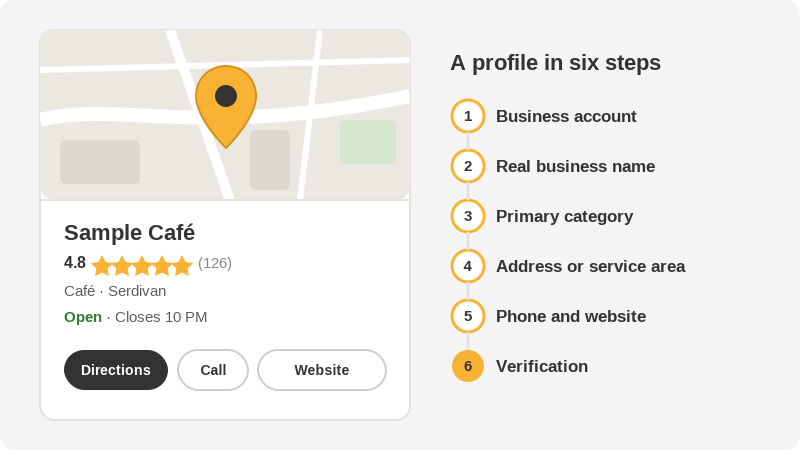
- Start with the right account. Create the profile with a Google account that belongs to the business. A profile set up on an employee’s personal account turns into a headache when that person leaves. To give your agency or employees access, add them as managers instead of handing over the profile.
- Use your real business name. Exactly what’s on your sign. Adding “cheapest,” a city name or a service to the name may seem to work in the short term, but it’s against Google’s guidelines and can get your profile suspended.
- Choose your primary category carefully. This choice does more than anything else to decide which searches you show up for on the map. Pick the category that describes your business most precisely, like “Seafood restaurant” instead of “Restaurant,” and add additional categories for your other services.
- Enter your address or service area. The address should be where your sign hangs and where customers can actually come. PO boxes and virtual office addresses with no staff aren’t accepted.
- Add your phone number and website. Make sure the business name, address and phone number on your website match the profile exactly. Google looks for this consistency.
- Complete verification. Until verification is done, your profile won’t fully show up in search and your edits won’t go live.
What to watch for in video verification
Google picks the verification method itself, depending on the business: it can be a phone call, email, a live video call or a video recording. Lately, video is the method it asks for most often. The video has to be recorded on a phone and uploaded through your profile, shot in one continuous take with no editing, and run at least 30 seconds.
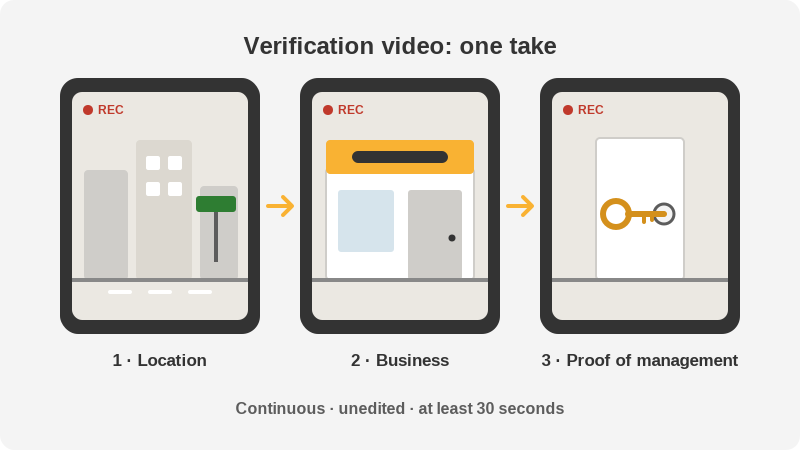
Videos that get accepted usually show three things, in this order:
- Location: The street sign, the shops next door or the building entrance; the surroundings that show the business is really there.
- Business: Permanent signage, the interior, products or equipment. A sign written on paper and taped to the window usually isn’t enough.
- Proof of management: Something only someone who works there can do: unlocking the door with a key, using the cash register or card reader, going into the kitchen or the stockroom.
The video shouldn’t show information like bank, tax or ID numbers, or other people’s faces. The review usually takes a few business days. If the video is rejected, Google shows you why, and you can send a new recording.
Your profile is up; now the real work begins
A verified profile is only as useful as it is complete. These are the sections customers look at most:
- Hours: Set special hours for religious and public holidays. A customer who shows up when you’re listed as open and finds the door locked will say so in a review.
- Photos: The exterior (so customers recognize your front door), the interior, your team, your products or your work. Recent, real photos build far more trust than stock images. Hotels, restaurants and stores can also add a 360° virtual tour to their profile.
- Description: Use this 750-character field to say, in plain language, what you do and what sets you apart. Links and promotional copy don’t belong here.
- Services and products: Add each service separately. Short descriptions make it easier for customers to find what they’re looking for.
- Posts: Use them to announce offers, events or new products; they also show that the profile is active.
Reviews: how to ask for them and how to reply
What businesses at the top of the map often have in common is the number of reviews they have and the way they reply to them. The best time to ask for a review is right when the job is done: after a delivery, an appointment or the check, send a short message with your review link. A QR code at the register or on the table works too.
A short thank-you is enough for a positive review. With a negative one, don’t get defensive: acknowledge the problem, say what you did about it and, if needed, offer to sort it out over the phone. It isn’t only the reviewer who reads your reply; so does everyone who looks at your profile later.
Asking for reviews in exchange for a discount or a gift, buying reviews and reviewing your own business are all against Google’s guidelines. Reviews like these get removed, and your profile can be restricted, too.
I have a profile, but I don’t show up on the map
Google ranks local results on three things: how relevant you are to the search, how far you are from the person searching and how well known your business is. You can’t change the distance; the other two are up to you:
- Categories and services that match what people actually search for
- A complete, up-to-date profile
- The number of reviews, your rating and your replies to reviews
- A website that carries the same information, loads fast and has pages about the areas you serve
- Mentions of your business on other sites (directories, news sites, industry sites)
If you were only just verified, you may need to wait a few weeks. If there’s a second profile for the same business (left over from an old address or created by someone else), it needs to be merged or removed; two profiles weaken each other.
How we can help
Setting up and verifying the profile is one of the first steps in our SEO work. We create your profile, or claim and clean up an existing one, and choose categories and services based on search data. We take care of photography and a virtual tour for the profile, bring your website in line with the profile’s information and set up a short review-request routine that fits your business.
If you’re wondering how to show up in AI-powered search, take a look at our post on showing up in AI search.
Sources: Google Business Profile Help Center, Verify your business with a video recording and Improve your local ranking on Google. Information current as of November 2026.